Configuring the Zebra LS2208 barcode scanner to function in System Five on Cloud.
This article is for newer Zebra LS2208 barcode scanners
The LS2208 must be configured using USB over COM Port emulation to function and will require the Windward Software Remote POS Device Manager to be setup.
Emulating a COM Port Over USB:
Note for Windows 11 Users:
• The Native CDC driver is also included with Windows 11.
Note for Windows 10 Users:
• Use the native CDC driver included in Windows 10 for Zebra scanners.
• Zebra CDC drivers are not required for Windows 10.
• If using Windows 10, skip the Zebra CDC driver installation and proceed to Step 3.
Procedure:
- Print out this document.
- Scan the following barcode.
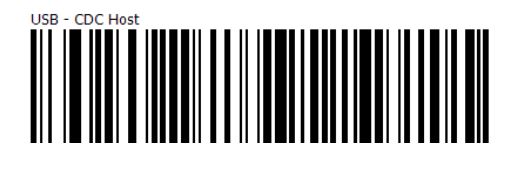
Now, your scanner should appear in Device Manager with a COM port number.
Open the Windward Remote POS Device Manager and click on the Barcode Scanner tab.
Click on Port Settings to set the COM Port to match the COM Port in Windows Device Manager.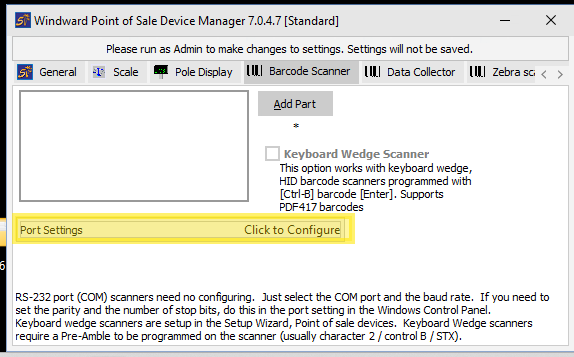
Click in the large white box and scan a barcode. It should appear in that box.
Click on the Message Relay tab and configure this to match your System Five on Cloud settings.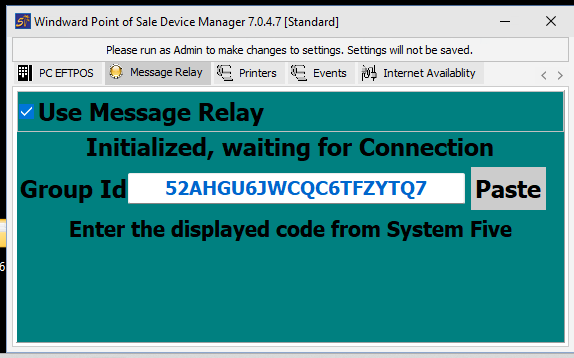
Open System Five on Cloud and log into it.
Open an estimate and test that a barcode /part number populates the invoice. Scan another barcode and a new barcode/part number should populate on a new line.
If it does, configuration is complete.
No changes to System Five will be required other than configuiring the Remote POS Device manager if that hasn't been done previously.