login to https://login.s5oc.com/
change the temporary password
enroll the account for MFA
How to Install Windows App (Step-by-Step Guide)
This will walk you through installing the Windows App on your computer. No advanced skills needed—just follow along! This will let you connect and use your System Five on Cloud subscription using firstname.lastname@s5oc.com credentials.
- These credentials are being rolled out to clients June-Aug of 2026. If you have not received yours yet hold tight as they will be sent once you are scheduled for migration.
What is the Windows App?
The Windows App is a Microsoft tool that lets you securely connect to Windows environments like:
- Windows 365
- Azure Virtual Desktop
- Remote PCs and apps
It acts like a “gateway” to access your work or cloud desktop from anywhere.
✅ Before You Start
Make sure you have:
- A Windows 10 version 17763.0 or higher or Windows 11 PC
- Internet connection
- An S5oc Account (firstname.lastname@s5oc.com)
Step 1: Open Microsoft Store
- 1. Click the Start Menu (Windows icon).
- 2. Type Microsoft Store.
- 3. Click the app to open it.
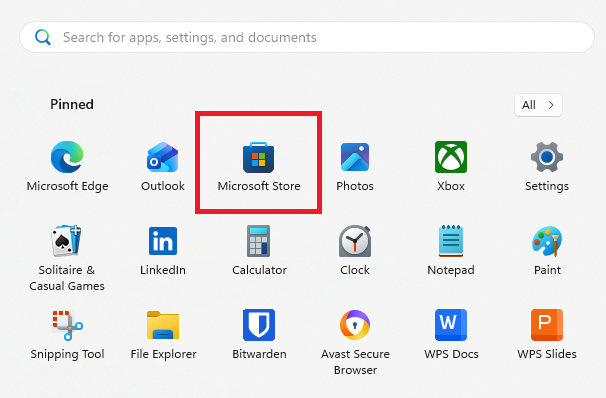
The Microsoft Store is the safest and easiest way to install apps on Windows. [support.mi...rosoft.com]
Step 2: Search for “Windows App”
- 1. In the Store search bar, type: Windows App
- 2. Press Enter
- 3. Select Windows App (by Microsoft Corporation) from the results
Step 3: Download and Install
1. Click the Get button
2. Wait for the app to download and install automatically
3. When done, click Open or Launch 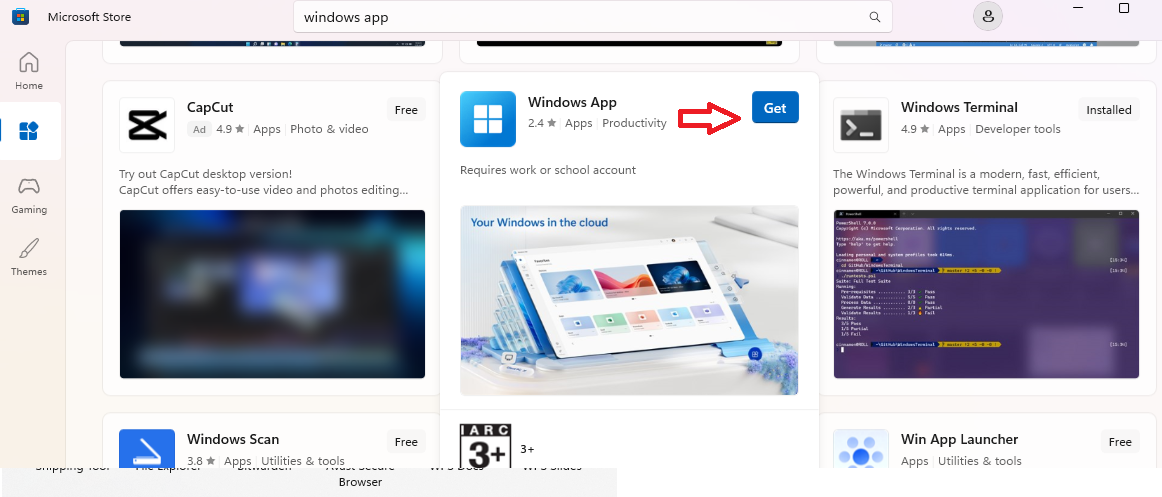
✅ The installation happens automatically once you click “Get.”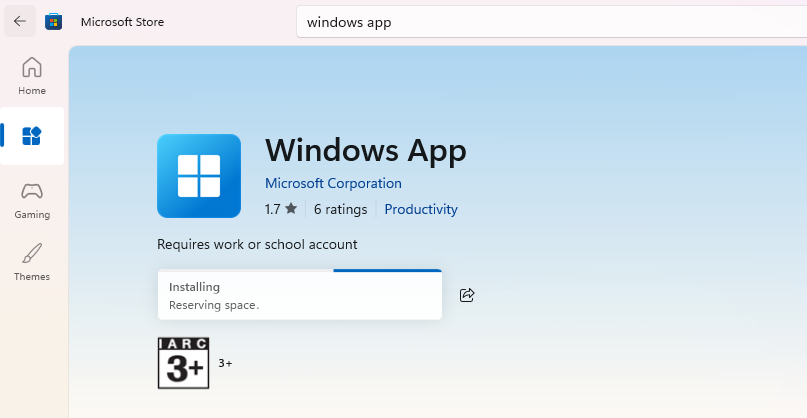
▶️ Step 4: Launch the App
- After installation, the app will open
- Or find it later in: Start Menu → Windows App 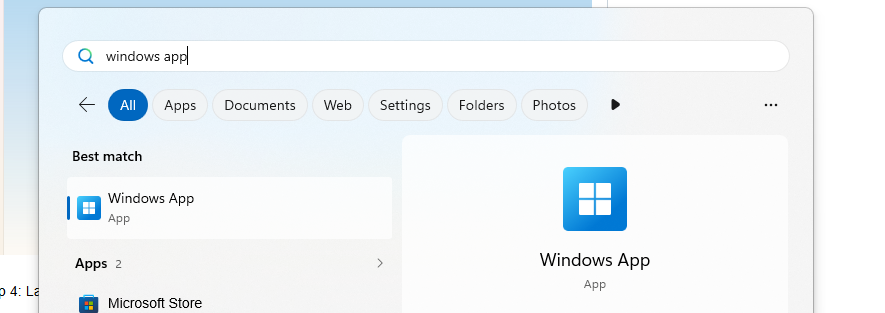
Step 5: Sign In
- 1. Click Sign In
- 2. Enter your S5oc Account (firstname.lastname@s5oc.com)
- These credentials are being rolled out to clients June-Aug of 2026. If you have not received yours yet hold tight as they will be sent once you are scheduled for migration.
- These credentials are being rolled out to clients June-Aug of 2026. If you have not received yours yet hold tight as they will be sent once you are scheduled for migration.
⚠️ Personal Microsoft accounts (like Outlook.com) are not supported for sign-in.
Step 6: Click your Company to connect to your VM
Direct Download Link
Click here to download the Windows App from Microsoft Store [apps.microsoft.com]