Overview
If there is a connectivity issue affecting the Remote Desktop client to connect to the System Five on Cloud environment. This browser-based version is available and could be used as an alternative to access data for business continuity. This is not the same experience as the Remote Desktop as there are limitations around printers and desktop sharing.
How to authenticate in a browser
- Using Chrome, click on https://client.wvd.microsoft.com/webclient/index.html
- Authenticate using your @na.windwardoncloud.com or @au.windwardoncloud.com
Printing from the AVD Web Client
❌ What does not work
- Local printer redirection (USB, network, default printer)
- Client-side printer mapping like you get with the Windows/macOS AVD app
- Azure Universal Printfrom the web client (still requires native client integration)
Browsers cannot expose local printer drivers to a remote session.
✅ What does work (practical workarounds)
Option 1 – Print to PDF → Download
- Print inside the AVD session to Microsoft Print to PDF
- The browser prompts to download the PDF
- User prints locally from their device
✅ Most common, lowest friction

This guide provides an alternative way to access your cloud environment in case access through the Remote Desktop Client application becomes unavailable.
Microsoft Remote Desktop Client will reach its end of support on March 27, 2026 for commercial cloud users. To ensure uninterrupted access, customers are encouraged to use the web-based access method outlined below.
Important Notice
You may encounter the following message:
"The remote desktop client will reach end of support on March 27, 2026 for commercial clouds and September 28, 2026 for AVD in Government and Azure 21Vianet Clouds. Install Windows App now to ensure uninterrupted access to your remote resources. Windows App offers improved user experience and customizability."
This means you should begin using alternative access methods as soon as possible.
Alternative Access Method (Web Browser)
You can continue accessing your cloud environment using any modern web browser.
Step-by-Step Instructions
Step 1: Open the Web Client
Go to the following URL:
https://client.wvd.microsoft.com/webclient/index.html
Step 2: Log In
Enter your Windwardoncloud username and password (na.windwardoncloud.com / au.windwardoncloud.com)
Click Sign In
Step 3: Access Your Resources
Once logged in, click on “Company Resources”
Step 4: Enable Required Permissions
When prompted:
Enable the following:
Clipboard
Printer
File Transfer
Click Allow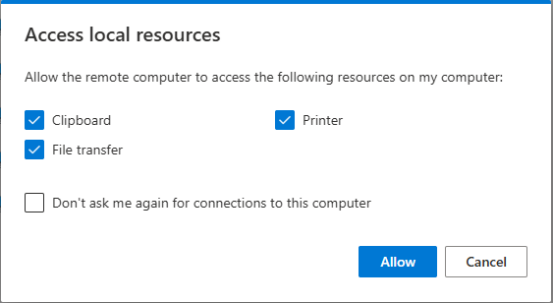
Step 5: Launch Your Session
Enter your username and password again if prompted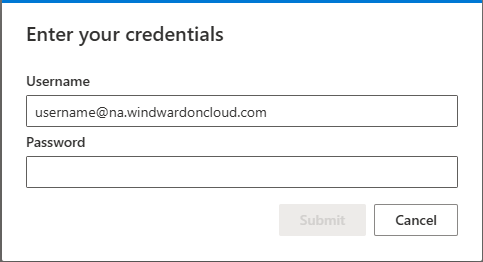
Wait for your cloud session to load
Important: Properly Signing Out
Always sign out properly after your session.
Do NOT:
Close the browser
Click Disconnect
Instead:
Log out from within the cloud environment (Sign Out / Log Off)
This ensures:
Your work is properly saved
Your session is securely closed
System resources are freed for future use
Tips for Best Experience
Use an updated browser such as:
Google Chrome
Microsoft Edge
Ensure a stable internet connection
Allow browser permissions when prompted
Avoid using public or shared devices for security
Caveats and Limitations:
The provided workaround has the following known limitations when accessed via Weblink:
- 1. RMR functionality is not supported in Weblink access.
- 2. Local printers are not redirected to the Cloud, preventing printing through Weblink sessions.
- 3. Local drives are not detected by the Cloud environment, which means features such as Email PDF will not function.
- 4. Payment processing may not work as expected, as it is dependent on RMR functionality, which is unavailable via Weblink.
Support
If you need assistance, please contact support@windwardsoftware.com