How to add a user to or delete a user from an existing Remote Desktop Client.
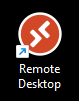
Open the Remote Desktop Client
Delete a user from the Remote Desktop Client
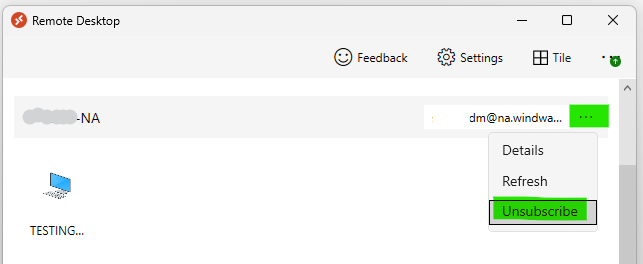
To delete a user from the Remote Desktop Client, you will click on the three dots to the right of the user's name and click on Unsubscribe in the drop down.
*** Do not click on the three dots in the top menu and click unsubscribe. This will unsubscribe all users on this PC ***
Add a new user to the Remote Desktop Client
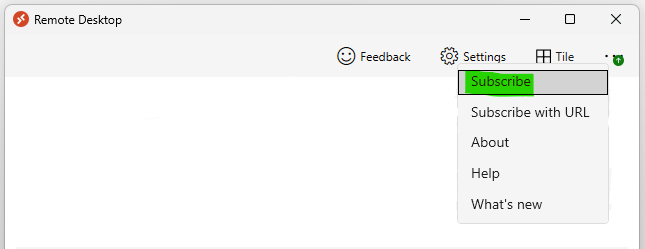
To add a new user to the Remote Desktop Client you will click on the three dots at the top right corner of the window.
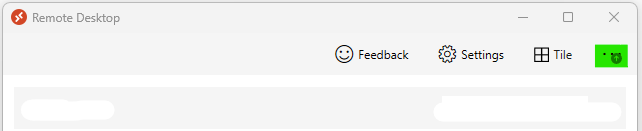
This will open a drop down window where you will click on Subscribe.
Enter the System Five On Cloud user name. This will be the one emailed to you by the Windward Software Cloud Operations Team.
For North America it will end in @na.windwardoncloud.com.
For Australia it will end in @au.windwardoncloud.com.
If you are prompted to pick an existing account, click on "+ Use another account"
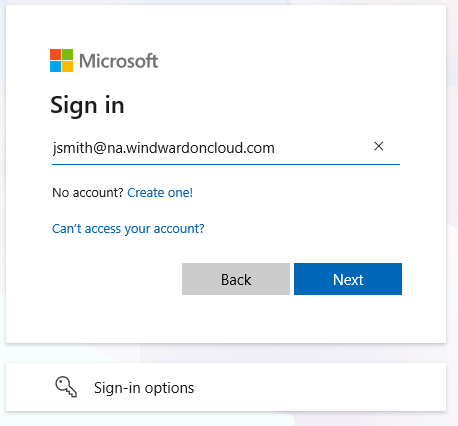
Click Next button
Enter the user's temporary password. This will be the one emailed to you by the Windward Software Cloud Operations Team.
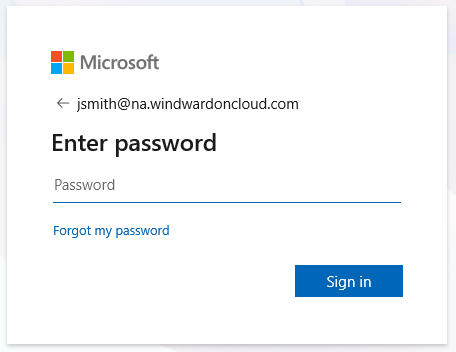
Click the Sign In button.
This should return you to the main Remote Desktop Client screen, and you should now see the new user's account listed there..
Click on the terminal icon next to the new user to sign into the cloud environment.
You will be prompted again to enter the user's password.
You can click in the Remember Me check box if you want the app to remember the user's password.
*** DO NOT check this box if you have multiple users signing into the cloud on this PC. ***
You may also get a change password screen if you are signing in with a temporary password.
If this is the case, enter the temporary password in the Old Password field and a New Password in the New Password and Confirmation fields.
You should now be able to sign into the Windward Software Cloud environment with the new user.
If you receive a message saying the user hasn't been enrolled in Multifactor Authentication, then follow the instructions in one of the following solution articles.
MFA Setup Via Email or Microsoft Authenticator.
https://support.windwardsoftware.com/a/solutions/articles/66000512473
MFA Setup Using a Browser Extension
https://support.windwardsoftware.com/a/solutions/articles/66000524460