Overview
If you receive a notification on your remote desktop that your password is about to expire, follow these self-serve instructions to change it yourself.
Security note: Never change your password by clicking a link in an email or pop-up. Always type the address below into your browser yourself. Windward will never ask for your password over email, chat, or phone.
Solution
1) Open your browser and go to https://mysignins.microsoft.com/security-info/password/change, then sign in with your System Five on Cloud credentials.
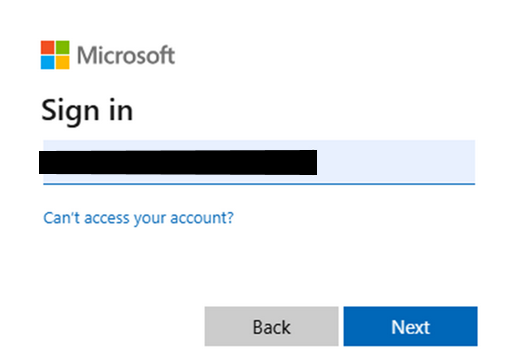
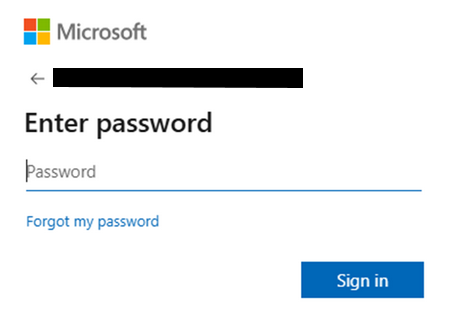
Here's what you'll see after entering your password.
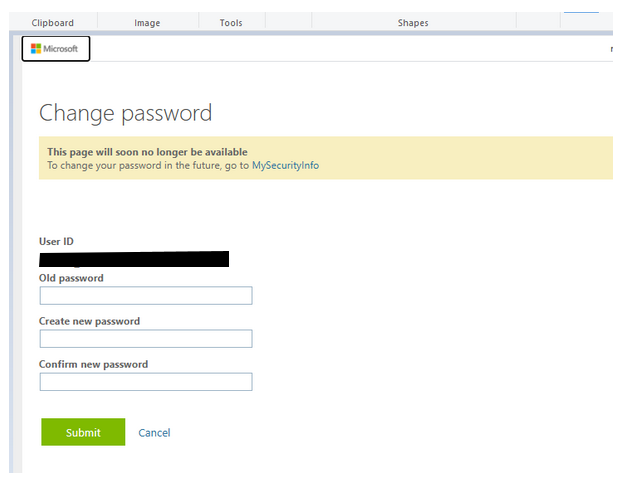
2) You can now update your password. Note it must be 14 characters and not be a previously used password.
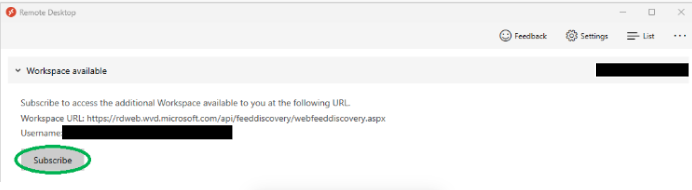
3) Once updated, sign out of your remote desktop session completely (Start → your name → Sign out). Then open Windows App (previously called Remote Desktop) and click Subscribe with URL.


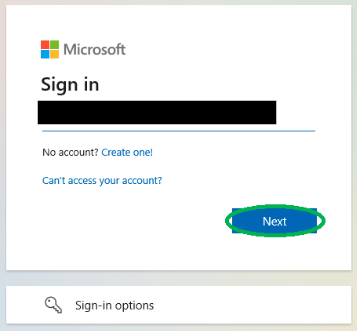
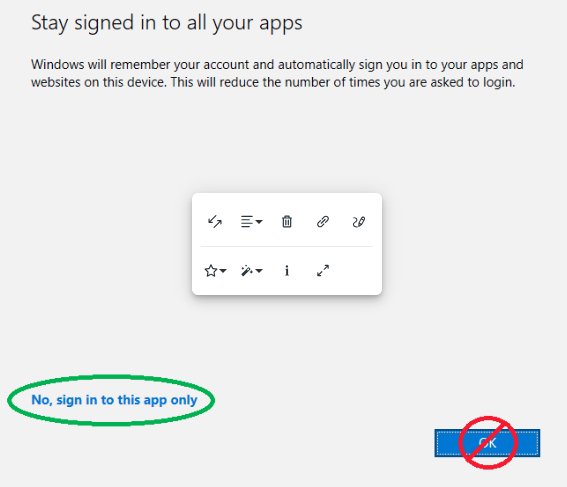
4) The login page will appear. Log in with your System Five on Cloud credentials. On the "Stay signed in to all your apps" screen, click No, sign in to this app only.
It can take a few minutes for your new password to sync. If sign-in fails right away, wait and try again.
If your password has already expired or you can't sign in, contact Windward Software support.