Overview
Use this article to learn more about the Multi-Factor Authentication (MFA) setup for System Five on Cloud on a smartphone. If you are not able to use a smartphone, alternatively you can explore configuration of a web browser extension.
TABLE OF CONTENTS
For Password Reset see: MFA - Forgot / Reset Cloud Password or Account Locked Out
What is MFA?
MFA is a system that combines something you know (your password), with something you have (an authentication device, normally your phone). This means that to compromise your account, an attacker would need both of these things, increasing the barrier of entry.
MFA is an important line of defence against unauthorized access to our systems. If a hacker manages to obtain your password through a phishing attack, they will have to also answer a multi-factor authentication challenge, which is another layer of security.
What do I need?
If you have access to a smartphone, Microsoft Authenticator is the best tool to get access.
Alternatively, for those who don't have access to or prefer not to use their smartphone, we also offer the ability to send authentication codes by email or use a browser plug-in.
First-time setup
To enroll for MFA, on any computer, go to
- S5oC.com credentials users: https://login.s5oc.com/authorization.do
- Prior to 2026-09: North American users: https://na.windwardoncloud.com
- Prior to 2026-09: Australian users: https://au.windwardoncloud.com
Choose to use Microsoft Authenticator or Email for verification.
To Use Microsoft Authenticator:
If you have not already installed Microsoft Authenticator on your phone, install them from here: iPhone:https://apps.apple.com/app/microsoft-authenticator/id983156458 Android:https://play.google.com/store/apps/details?id=com.azure.authenticator
- s5oC.com credentials users: https://login.s5oc.com/authorization.do and sign in.
- If you are in North America prior to 2026-09: go to https://na.windwardoncloud.com and sign in.
- If you are in Australia prior to 2026-09: go to https://au.windwardoncloud.com and sign in.
- Choose Microsoft Authenticator when prompted to add Microsoft Authenticator to your account.
- Open Microsoft Authenticator on your phone.
- Choose the plus button in the top right.
- Tap Other (Google, Facebook, etc.)
- Scan the QR code on your computer screen.
- On the next page, enter the code below the entry. You may need to scroll down to see it.
- Click Confirm, and you are enrolled!
- Generating Backup Codes to ensure you can still log in in case you lose your device.
- s5oC.com credentials users: https://login.s5oc.com/authorization.doand sign in.
- If you are in North America prior to 2026-09: go to https://na.windwardoncloud.com and sign in.
- If you are in Australia prior to 2026-09: go to https://au.windwardoncloud.com and sign in.
- Choose Email Verification when prompted.
- Enter the email address that you want the verification email to be sent to and click Send Code
- Ensure noreply@windwardsoftware.com is whitelisted in your spam filter to ensure you receive codes.
- Enter the code sent in the email.
- Click Verify Code, and you are enrolled!
- It is also recommended that you Generate Backup Codes to ensure you can still log in in case you lose your device.
Generating Backup Codes
We recommend you generate backup codes for your account. In the event you lose your authenticator, you can use a backup code to log in and change your authenticator. To do this:
- s5oC.com credentials users: https://login.s5oc.com/authorization.doand sign in.
- If you are in North America prior to 2026-09: go to https://na.windwardoncloud.com and sign in.
- If you are in Australia prior to 2026-09: go to https://au.windwardoncloud.com and sign in.
- Enter the code on your authenticator.
- Under MFA Recovery, choose Generate One-Time Use Backup Verification Codes.
- Copy these codes to a safe place.
- We recommend using a password manager to securely store these codes. Be sure not to keep them on the same device you use as an authenticator!
Logging in
Once you are enrolled in MFA, when you log into an MFA-enabled machine, you will be presented with a window similar to this:
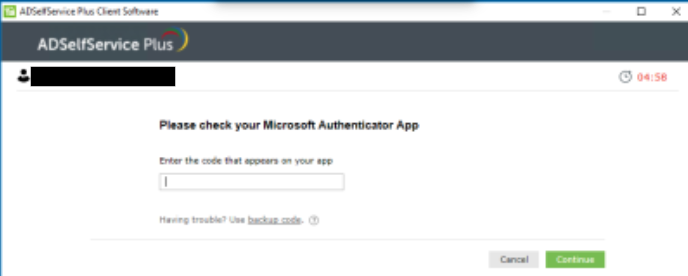
Check your email or smartphone app for your 6-digit code and enter it in the box.
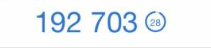
Enter the 6-digit code displayed and click Continue. Your login will proceed.
Changing your Authenticator
If you need to change which device has your authenticator code, or which email address codes are sent to, you can change that like so:
- Log in using your username and password.
- Enter the code from your authenticator (if possible) or click Use Backup Code if you do not.
- If you are using Microsoft Authenticator:

- Click the pencil icon under Microsoft Authenticator
- Choose Change Phone.
- Follow the instructions on your new phone.
- Your new phone is now your active authenticator.
- If you are using email:
- Click Add Email under email verification
- Add the new email address and click Send Code
- Enter the code your received to your new email address. Be sure to check your spam.
- If you no longer have access or wish to receive notifications to your old email address:
- Click the pencil beside the old email address
- Choose Remove Email.

I've lost access to my authenticator. What do I do?
Follow the instructions above for Changing your Authenticator if you have access to your backup codes.
If you don't have backup codes, contact support.
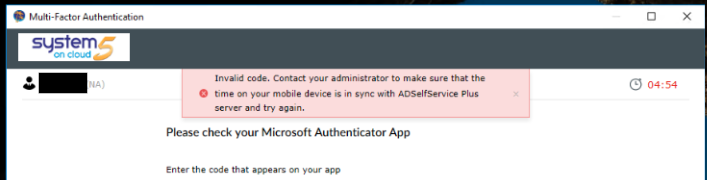
My app won't let me scan the QR code
- If you have an iPhone, you may have denied the Authenticator app camera permissions. To fix this, go to Settings → Privacy → Camera and make sure Authenticator is set to ON.
- Sometimes poor lighting or a dirty camera lens can cause the QR code to not scan successfully. If wiping the lens or improving the lighting does not resolve, you may need to enter the code manually.